
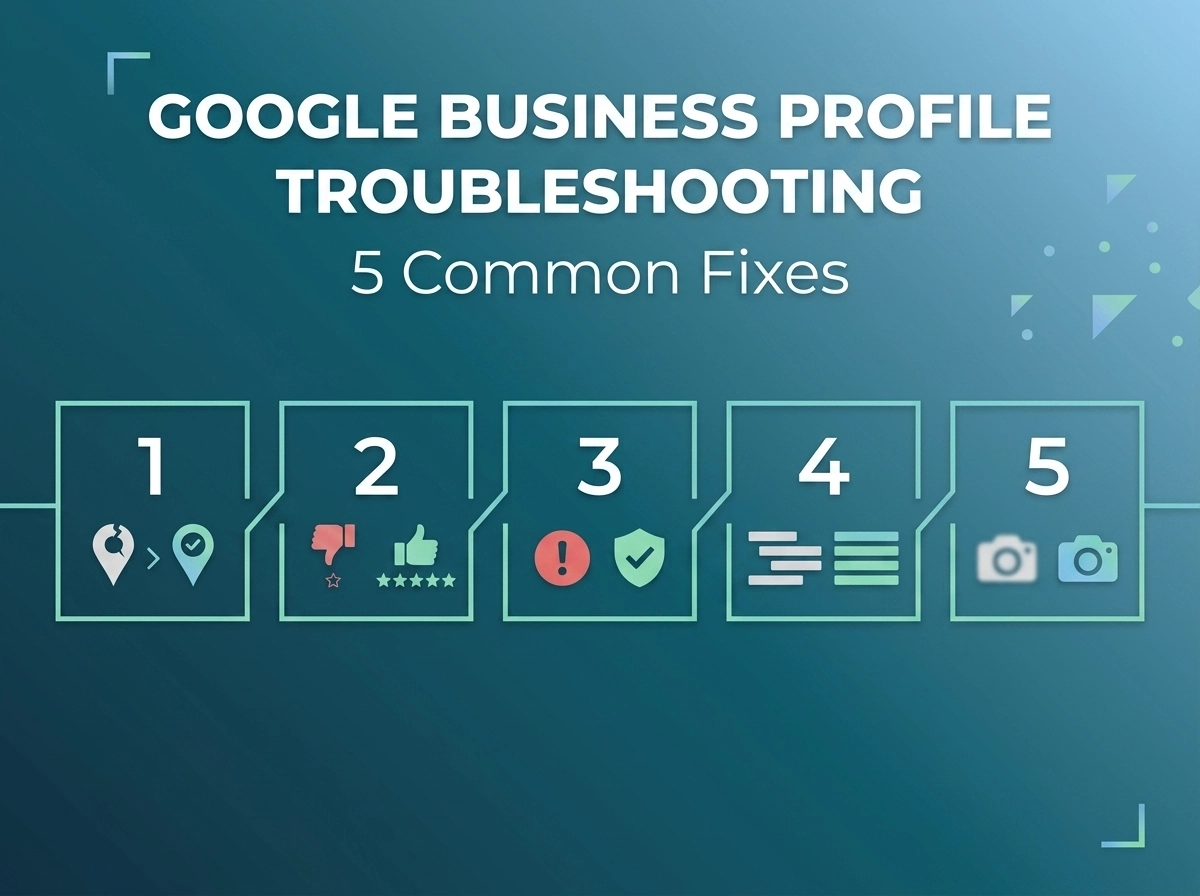
Few things frustrate a marketing manager or SEO consultant more than logging into their dashboard to find a red alert next to their local listing. One day you are dominating the local 3-Pack; the next, your phone stops ringing because your profile has been suspended, filtered, or altered by an external edit.
When your local visibility drops, guessing your way to a solution isn't an option. You need a data-backed, technical roadmap. This step-by-step tutorial breaks down the five most acute Google Business Profile troubleshooting roadblocks and provides the exact execution blueprints to fix them without losing your hard-earned local rank.
1. The Dreaded "Suspended" Status
A profile suspension usually triggers after a sudden change to core data (like hours or business name) or when an automated sweep flags an optimization element as a quality guideline violation.
Identify the Type
- Soft Suspension: Your backend dashboard says "Suspended," but your listing is still visible on Maps (you just can't manage it).
- Hard Suspension: Your business has been completely wiped from public view.
Audit for Violations
Before appealing, ensure you aren't using a P.O. Box, a virtual office address, or a keyword-stuffed business name. If you are, fix it immediately.
Gather Evidence
Scan your official business registration, utility bills showing your physical location, and pictures of permanent exterior signage.
Submit the Official Appeal
Navigate to the Google Business Profile Help community, locate the appeals tool, upload your clean documentation, and track your case ID.
2. The Rogue Duplicate Listing
Duplicate listings split your organic ranking authority, confuse customers, and break your citation consistency. They are often created accidentally by users or auto-generated by old scraping bots.
Locate the Duplicate's URL
Search for your exact business name on Google Maps to find the unverified rogue profile.
Check for Reviews
- If the duplicate has zero reviews: Simply click "Suggest an edit" on the public listing and select "Close or remove" > "Duplicate of another place."
- If both have reviews: You must contact Google support directly. Provide the URLs of both profiles and explicitly request a review merge.
Warning
Only attempt a merge if the physical address and business name are identical on both profiles. If they differ, Google's automated system may accidentally delete both listings.
3. Missing or Highly Filtered Customer Reviews
You sent a review link to a happy client, they confirmed they left a 5-star rating, but it’s completely invisible to the public. Google’s automated review spam filter has become aggressively strict.
Rule Out the Wi-Fi Trap
Did the customer write the review while connected to your in-store guest Wi-Fi? Google flags this as a conflict of interest and filters the review.
Collect Proof
Ask your client to take a screenshot of the review from their Google account contributions page.
Contact Support
Open a ticket inside your profile management console under "Reviews." Attach the customer’s screenshot and your matching invoice or service contract to prove it was an authentic transactional relationship.
4. The Misplaced Map Pin and SAB Radius Conflicts
If your business is a Service Area Business (SAB)—meaning you travel to your clients (like a plumber or mobile consultant)—displaying a physical storefront address where you do not have staff present violates Google's terms and triggers local ranking filtering.
Navigate to Location Settings
Inside your dashboard, open the "Edit profile" panel and click on "Business location."
For Storefronts
Drag the map marker pin manually to ensure it rests exactly on your entrance door, not the center of the street grid.
For Service Area Businesses
Clear your physical address entirely. Instead, toggle the service areas section and define your specific service radius by city names, zip codes, or states (keep it within a realistic 2-hour driving window).
5. Overwriting Unauthorized User-Suggested Edits
Google allows community users and map local guides to suggest changes to your operating hours, phone numbers, and website links. If your account doesn't have proactive Google Business Profile management in place, Google may automatically accept these edits.
Check Dashboard Alerts
Log into your dashboard weekly and look for orange highlights or notification badges indicating "Google updates based on user reports."
Review the Changes
Carefully look over the suggested edits. If a competitor has suggested you are "Permanently Closed," click "Discard" or "Accept" depending on validity.
Protect Your Listing
Set up real-time email notifications for profile changes so you can intercept and revert unauthorized modifications within minutes of them going live.
Fix Gaps Fast to Protect Revenue
| Roadblock | Core Culprit | Resolution Time | Impact Level |
| Suspension | Guideline drift / Address data conflict | 3 to 7 Business Days | Critical (Total Blackout) |
| Duplicates | Scraping errors / User actions | 24 to 48 Hours | Medium (Authority Split) |
| Filtered Reviews | IP tracking / Over-optimization filters | 48 to 72 Hours | High (Social Proof Loss) |
Conclusion
Local search troubleshooting requires consistent, detailed attention. For marketing teams managing several entities or consultants handling multiple client profiles, fixing these recurring errors manually can take hours out of your week.
Tired of fighting with Google's support dashboard every time an algorithm update rolls out? Let us handle your profile health, security locks, and automated review management.